Using Signify Creator
This guide covers normal day-to-day work in the Studio and Workspace areas.
| Home | Configuration | Application Owner Guide |
Sign In
- Open your Signify address, such as
https://signatures.example.com. - Enter your work email and password.
- Complete multi-factor authentication when required.
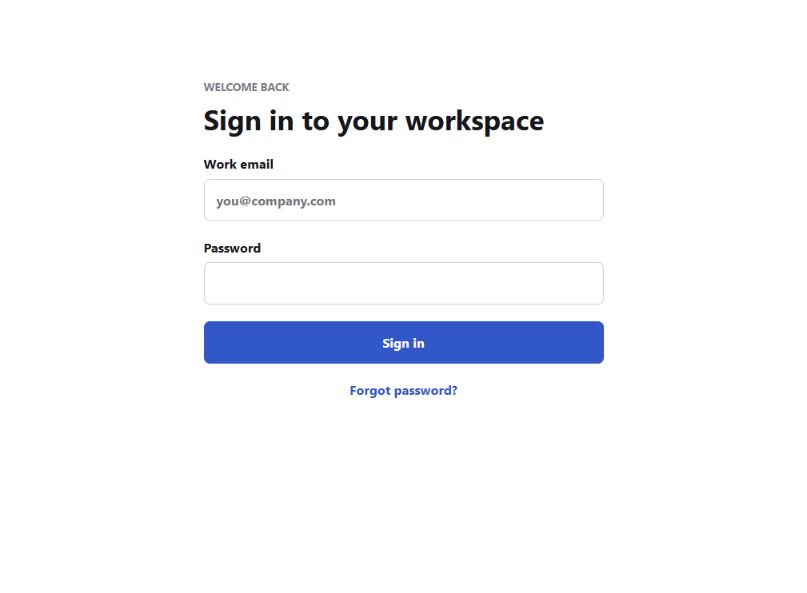
After signing in, the top navigation shows the areas available to your account:
- Studio for creating and previewing signatures
- Workspace for organization administration
- Application for Application Owners
Studio Overview
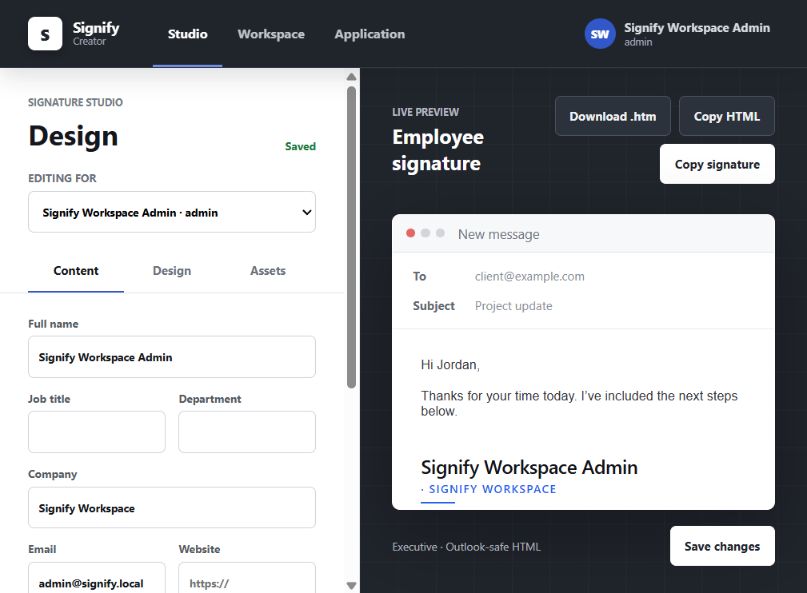
The Studio is divided into two main areas:
- The left side contains employee selection and editing controls.
- The right side shows a live email preview and signature actions.
Choose an Employee
Tenant Admins and permitted editors can use Editing for to select an employee. End Users normally see their own profile.
The employee selector does not change tenant access. Users can only load records permitted by their server-side role.
Content Tab
Use the Content tab for identity and contact information:
- Full name
- Job title
- Department
- Company
- Email address
- Website
- Direct phone
- Mobile phone
- Address
- Social profile links
Example employee information:
Full name: Jordan Lee
Job title: Client Success Manager
Department: Customer Experience
Company: Example Company
Email: jordan.lee@example.com
Direct phone: (555) 010-1200
Website: https://www.example.com
Use complete web addresses beginning with https:// for websites and social
profiles.
Design Tab
Use the Design tab to select a preset and apply permitted visual settings. The available options can include:
- Signature layout or template
- Brand colors
- Font family and text appearance
- Spacing and alignment
- Profile image treatment
- Social icon appearance
- Contact card and QR-code options
The preview is visual, but the saved output is generated as email-safe HTML. Signify uses table-based layout and compatibility techniques where needed so the result remains usable in Outlook.
Assets Tab
Use the Assets tab to add or select:
- Employee profile image
- Company logo
- Campaign banner
- Other approved workspace media
Use clear PNG, JPEG, WebP, or GIF assets that are appropriate for email. Avoid very large source files. Tenant media limits are controlled by the Application Owner.
Animate a Banner
- Open Studio > Assets.
- Upload a banner or choose one from the banner library.
- Choose a motion style and review it in the live animation preview.
- Choose Standard, High, or Ultra quality and adjust the speed and intensity.
- Select Create animation, wait for the completed file size to appear, and then save the signature.
Ultra is the default professional profile. It renders at twice the delivery resolution before downsampling and exports at up to 25 FPS. Slower motion uses additional frames to preserve that frame rate. Signify keeps the source banner’s original proportions, scales it down only when it exceeds the email-safe limits, and preserves the original when generating another version. Changing an effect therefore does not crop the artwork or recompress the previous GIF.
Contact Card and QR Code
Enable Add contact card to include a QR code and downloadable vCard when the selected design supports it.
Before using this feature widely:
- Confirm the public Signify address uses HTTPS.
- Scan the QR code from another device.
- Download the contact card.
- Confirm the name, company, phone, and email are correct.
Preview the Signature
The preview places the signature in a sample email so you can judge:
- Overall width
- Text size and hierarchy
- Logo and profile image quality
- Banner proportions
- Mobile readability
- Spacing around the message body
Always send a real test message through the intended mail client before a broad rollout.
Save and Export
Available actions can include:
- Save changes saves the employee signature to the workspace.
- Copy signature copies a version intended for pasting into supported email clients.
- Copy HTML copies the generated HTML source.
- Download .htm downloads an HTML file for manual deployment or testing.
After saving, refresh the page and reopen the employee to confirm the changes were stored.
Templates
Templates keep signatures consistent across employees and departments.
Create a Template
- Open Workspace > Templates.
- Select Create template.
- Enter a clear name, such as
Corporate StandardorSales Team. - Choose the base layout.
- Apply brand colors, font, logo, social links, and default options.
- Save the template.
- Preview it with more than one employee profile.
Recommended Template Naming
Corporate Standard
Executive Banner
Sales Campaign
Support Team Compact
Holiday Campaign 2026
Avoid names such as Test 2, New, or Final Final because they are difficult
to manage later.
Update a Template Safely
- Create or download a backup before a large change.
- Test the edit with one employee.
- Preview long names, long titles, and missing phone numbers.
- Test in Outlook desktop, Outlook web, and a mobile mail client.
- Use the rollout tools only after the preview is approved.
People and User Accounts
Open Workspace > People to manage workspace members.
Add a User Directly
Direct creation does not require email delivery.
- Select Add user.
- Enter the person’s name and email.
- Choose the role.
- Enter optional profile information.
- Create the account.
- Provide the temporary password securely.
- Ask the user to sign in and change it.
Invite a User by Email
Email invitations require transactional email.
- Select Invite user.
- Enter the email address.
- Choose the role.
- Send the invitation.
- Confirm the invitation is accepted before its expiration time.
Roles
| Workspace role | Typical use |
|---|---|
| Admin | Manages people, templates, campaigns, Microsoft 365, and workspace settings |
| Editor | Creates and updates permitted signatures and content |
| Viewer or End User | Views or edits only the profile and signature capabilities assigned to the account |
Use the least powerful role that allows the person to do their job.
User Capacity
Community Edition allows up to 10 users in its single workspace. Pending invitations reserve capacity so the limit cannot be bypassed by creating both an invitation and a direct account for the same remaining slot.
If the workspace reaches its limit, deactivate or remove an unused member, or activate a license with additional capacity.
Banners
Banners can be uploaded, generated, stored in the banner repository, and added to signatures or campaigns.
Add a Banner
- Open the banner or asset area in Workspace.
- Upload an image or open the banner creator.
- Choose the banner dimensions.
- Add overlay text when needed.
- Set font, size, weight, alignment, and color.
- Choose an animation effect, speed, intensity, and quality.
- Save the banner to the repository.
Keep text away from the image edges. Generated email banners keep their source proportions and are reduced only when needed to fit within 440 by 220 pixels.
Banner Example
Name: Fall Security Review
Headline: Schedule Your 2026 Security Review
Action text: Book a Consultation
Destination: https://www.example.com/security-review
Use a meaningful banner name so campaign creators can find it later.
Campaigns
Campaigns apply a banner to signatures for a defined period.
Create a Campaign
- Open Workspace > Campaigns.
- Select Create campaign.
- Enter the campaign name.
- Choose a saved banner from the banner repository.
- Enter the destination address for tracked clicks.
- Select the start and end dates.
- Choose the intended audience or scope.
- Review the banner preview.
- Save the campaign.
Cancel and close controls do not require completed form fields. No campaign is created until the save action succeeds.
Campaign Status
| Status | Meaning |
|---|---|
| Draft | Saved but not active |
| Scheduled | Waiting for the start date |
| Active | Eligible signatures display the banner |
| Ended | The end date has passed |
Test a Campaign
- Use a test banner and short test date range.
- Assign it to a test employee or small group.
- Open the signature preview.
- Confirm the banner is not enlarged or cropped.
- Click the banner and confirm the destination.
- Check campaign reporting for the tracked click.
- Disable or end the test campaign.
Microsoft 365 Directory Synchronization
After a Tenant Admin connects Microsoft 365:
- Open the Microsoft 365 or directory area in Workspace.
- Start a directory synchronization.
- Wait for the background job to complete.
- Review discovered users.
- Approve, invite, or manage users according to workspace policy.
Synchronization is tenant-scoped. One workspace cannot read another workspace’s directory data.
Signature Rollout
Use rollout tools after the template, employee data, and Microsoft 365 connection have been tested.
- Select the template and target users.
- Review the rollout summary.
- Start the rollout.
- Monitor the background job.
- Review failures instead of immediately retrying everything.
- Correct the root cause and retry only affected work.
Managed signatures are removed or disabled when the member or Enterprise tenant subscription is inactive, then resume when entitlement is restored.
Approvals
When approval is enabled, submit signature changes for review rather than publishing them immediately.
Reviewers should verify:
- Identity and contact information
- Company name and job title
- Brand colors and logo
- Website and social destinations
- Banner campaign and dates
- Mobile and Outlook rendering
Approval actions are recorded so the workspace has an activity history.
Daily Usage Checklist
- Confirm recently changed signatures display correctly.
- Review pending invitations and approvals.
- Check active campaign dates and destinations.
- Review failed Microsoft or rollout jobs.
- Remove outdated banners and test records when no longer needed.
- Avoid uploading duplicate or oversized media.
For application-wide maintenance, continue with the Application Owner Guide.