Application Owner Guide
Application Owners manage the complete Signify installation. This access is separate from normal workspace administration.
| Home | Configuration | Troubleshooting |
Application Owner Responsibilities
- Protect Application Owner access with MFA
- Maintain licensing and tenant capacity
- Configure application-level integrations
- Create and manage tenants in Enterprise Edition
- Install verified updates
- Create, download, and restore backups
- Monitor background jobs and usage
- Review application-wide audit history
- Maintain off-site recovery copies
Application Navigation
The exact labels adjust to the active edition.
| Section | Purpose |
|---|---|
| Workspace or Tenants | Manage the Community workspace or Enterprise tenant portfolio |
| Licensing | View installation ID, edition, limits, status, and activation |
| Integrations | Configure email, Microsoft 365, GitHub, and eligible Enterprise Stripe access |
| Application Owners | Grant owner access, review MFA, and manage sessions |
| Updates & backups | Check releases, install supported updates, and manage recovery points |
| Background jobs | Review queued, running, failed, and dead-lettered work |
| Usage or Fleet & usage | Review installation and tenant utilization |
| Application audit | Review privileged actions and global changes |
Secure the Owner Account
Production requires MFA by default.
Enroll MFA
- Sign in as the Application Owner.
- Open Application > Application Owners.
- Select the MFA setup action.
- Scan the QR code with an authenticator app.
- Enter the current six-digit code.
- Store recovery codes in a password manager.
Recovery codes are single-use. Generate replacement codes before all current codes are consumed.
Review Sessions
Review active devices regularly. Revoke sessions you do not recognize. Revoking another session requires a reason and creates an audit record.
Sensitive actions require password and MFA verification again. A successful verification opens a short privileged window rather than weakening the normal session policy.
Licensing
Open Application > Licensing.
Community Edition
- One workspace
- Up to 10 users
- No tenant portfolio
- No Stripe controls
- No license key required
Activate Enterprise
- Copy the displayed installation ID.
- Obtain an activation key issued for that installation.
- Enter the key and a reason.
- Select Activate.
- Confirm the displayed edition, expiration, tenant limit, and user limit.
A license key is bound to its installation. A key for another installation is rejected.
Refresh a License
Use Refresh when the commercial subscription, limits, or status changed. The application also checks the License Authority automatically.
If the authority is temporarily unavailable, the last valid signed entitlement continues through its displayed offline grace period.
Expiration, Revocation, or Downgrade
Signify returns to Community limits without deleting tenant, user, signature, or campaign data. New operations that exceed Community limits are blocked.
Stripe becomes hidden and inactive immediately when the Enterprise billing entitlement is absent, expired, suspended, or revoked. Saved Stripe credentials remain encrypted but are not returned to the browser or used until eligible Enterprise access is restored.
Tenant Management
Enterprise licenses can permit more than one tenant.
Create a Tenant
- Open Application > Tenants.
- Select Create tenant.
- Enter the organization name and unique slug.
- Enter the first Tenant Admin’s email.
- Choose the starting plan and user capacity when applicable.
- Enter an audit reason.
- Create the tenant.
- Provide or send the onboarding information to the Tenant Admin.
The server checks tenant capacity inside the creation transaction. Concurrent requests cannot bypass the licensed limit.
Suspend a Tenant
Suspension prevents normal tenant access and revokes tenant sessions. Use it for security, contractual, or support reasons. Enter a clear reason because the action appears in the application audit.
Support Access
Use time-limited support access instead of permanent tenant membership. Record:
- Why access is needed
- Who approved it
- How long it should remain active
- What was changed
End support access immediately after the work is complete.
Export or Delete Tenant Data
A tenant export excludes password hashes, session tokens, provider credentials, and raw sensitive job payloads.
Tenant deletion:
- Requires the exact tenant slug.
- Suspends the tenant immediately.
- Revokes tenant sessions.
- Waits through the configured deletion grace period.
- Runs as a durable background job.
- Removes tenant data and media while retaining required audit evidence.
Cancellation remains available until purging starts.
Integrations
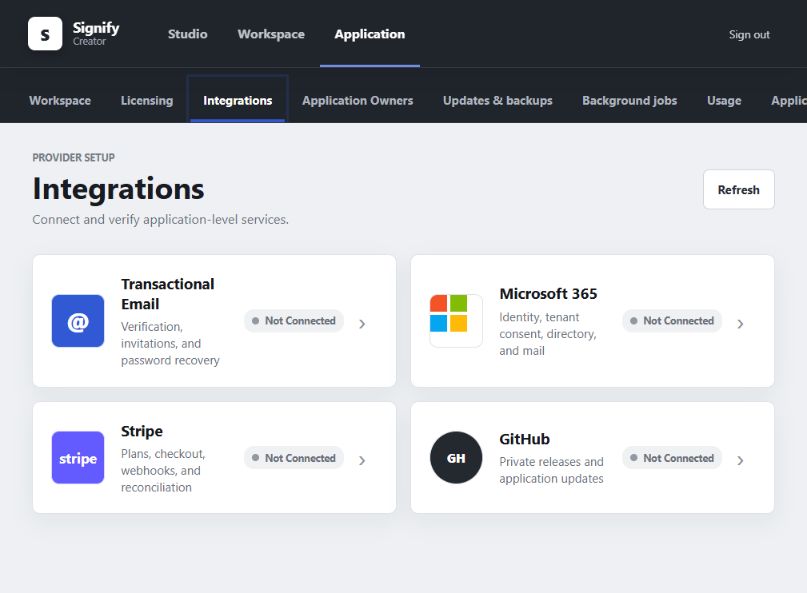
Each provider appears as a clickable tile. Select a tile to view or change its settings.
Transactional Email
Used for registration verification, invitations, password reset, and account messages. Verify delivery before enabling public registration.
Microsoft 365
The Application Owner connects the shared Entra application. Each Tenant Admin then grants access to their own Microsoft 365 tenant.
GitHub
Used to read public Signify releases. A token is optional; when one is used for a higher rate limit or authorized private fork, it should have read-only Contents permission for that repository only.
Stripe
Stripe is visible only with an active Enterprise license containing the tenant billing right. It is an Application Owner control and is never shown to normal tenant users.
Use a Stripe test key first. Verify recurring prices, webhook creation, Checkout, the customer portal, and reconciliation before connecting live billing.
Updates
Open Application > Updates & backups.
Check for an Update
- Confirm GitHub is connected.
- Select Check for updates.
- Review the installed version and newest release.
- Read the release notes.
- Create and download a backup.
Signify checks automatically every six hours by default.
Install an Update
One-click installation requires a compatible host configuration. Before activation, Signify verifies:
- Package size
- SHA-256 checksums
- Release signature when required
- Release version and downgrade policy
- Database migration preflight
- Safety backup
- Readiness after restart
If readiness fails, the managed deployment process restores the previous release.
On hosting panels without restart-script access, download or detect the release in Signify and install it through the hosting panel.
Backups
Create a Backup
- Open Updates & backups.
- Select Create backup.
- Wait for completion.
- Download the backup.
- Store another encrypted copy outside the application server.
Back up before:
- Software updates
- Credential rotation
- Major template or tenant changes
- Provider migrations
- Operating-system maintenance
Restore a Backup
Restoration is intentionally guarded.
- Confirm the backup belongs to this installation and expected version.
- Download a current backup before replacing anything.
- Stage the selected backup.
- Enter the required confirmation and reason.
- Restart the application when instructed.
- Let the web process apply the pending restore.
- Verify
/api/ready, login, users, templates, media, and integrations.
Stop the web process and worker before manually replacing a SQLite database.
Off-Site Recovery
A production installation should maintain:
- Multiple recent backup copies
- At least one encrypted off-site copy
- Versioning or object lock where available
- A tested restoration procedure
- Written ownership for recovery actions
Run a recovery drill after major infrastructure changes and on a regular schedule.
Background Jobs
Signify uses durable jobs for directory synchronization, rollout, email delivery, billing reconciliation, and tenant lifecycle operations.
Statuses include:
| Status | Meaning |
|---|---|
| Queued | Waiting for a worker |
| Running | Claimed by the worker |
| Completed | Finished successfully |
| Retry scheduled | A temporary error will be retried |
| Dead-lettered | Retry budget was exhausted and administrator attention is required |
Do not repeatedly retry a failed job without correcting the underlying problem. Review the saved error, fix the provider, data, or configuration issue, then requeue the job with an audit reason.
Usage and Health
The Usage or Fleet page reports:
- Installed release
- Database engine and schema version
- Media storage mode
- Queue and dead-letter counts
- Workspace or tenant utilization
- People, templates, campaigns, and tracked clicks
Health addresses:
/api/live
/api/ready
/api/health
/api/metrics
/api/metrics/prometheus
Do not expose detailed metrics publicly without access controls at the proxy or monitoring layer.
Audit Review
Review the Application audit after:
- Owner grants or removals
- MFA or session changes
- License activation, refresh, or downgrade
- Tenant creation, suspension, support access, or deletion
- Integration connection or disconnection
- Stripe subscription changes
- Backup restoration
- Update installation
Audit reasons should explain the business purpose, not repeat the button label.
Good example:
Approved by Operations Manager to onboard the Raleigh office workspace.
Weak example:
Update tenant
Monthly Owner Checklist
- Review active Application Owners and MFA status.
- Review active sessions and revoke unknown devices.
- Confirm the license and offline grace dates.
- Review tenant and user capacity.
- Check integration verification status.
- Review dead-lettered jobs.
- Create and download a backup.
- Confirm off-site backup replication.
- Review available releases.
- Inspect security and application audit events.