Signify Creator Guide
Welcome to the complete guide for installing, configuring, and using Signify Creator.
Signify Creator is a self-hosted web application for building professional email signatures, managing organization-wide branding, running banner campaigns, and delivering signatures through Microsoft 365.
Start Here
Choose the guide that matches what you need to do:
| I want to… | Open this guide |
|---|---|
| Install Signify on a Node.js web host, VPS, or Docker server | Installation |
| Set the domain, storage, email, Microsoft 365, or updates | Configuration |
| Create signatures, templates, banners, campaigns, and users | Using Signify Creator |
| Manage licensing, workspaces, backups, updates, jobs, and audits | Application Owner Guide |
| Diagnose a setup, login, integration, update, or storage problem | Troubleshooting |
What Signify Creator Includes
- A visual, Outlook-friendly signature editor
- Reusable signature templates and company branding
- Employee profile and signature management
- Custom banner creation and campaign scheduling
- QR codes, contact cards, social links, and branded assets
- Microsoft 365 directory synchronization and signature delivery
- Direct user creation and optional email invitations
- Approval workflows, click tracking, and campaign reporting
- GitHub release checks and managed updates
- Backups, restoration, activity history, and operational health checks
- Three levels of access: Application Owner, Tenant Admin, and End User
Editions
Community Edition
Every new installation begins in Community Edition. No license key is required.
- One organization workspace
- Up to 10 users
- Signature editor, templates, banners, and campaigns
- Microsoft 365 support for the installation’s organization
- Backups, updates, and normal workspace administration
Community Edition does not show multi-tenant controls or Stripe settings.
Enterprise Edition
Enterprise is activated by entering a license key under Application > Licensing.
Depending on the signed license, Enterprise can provide:
- Multiple customer or department tenants
- Higher user limits
- Cross-tenant administration and reporting
- Enterprise tenant billing through Stripe
The Signify License Authority is operated privately by the product owner. It is not included with customer installations and is not offered for sale.
Access Levels
| Access level | Intended user | Main responsibilities |
|---|---|---|
| Application Owner | The person responsible for the complete installation | Licensing, tenants, integrations, updates, backups, application owners, jobs, and global audit history |
| Tenant Admin | An administrator for one organization | People, templates, campaigns, Microsoft 365 connection, branding, approvals, and workspace settings |
| End User | An employee or signature editor | Edit permitted profile fields, preview a signature, and use assigned templates |
Application Owners can also belong to a workspace, but application-level access is separate from tenant membership.
The Main Areas
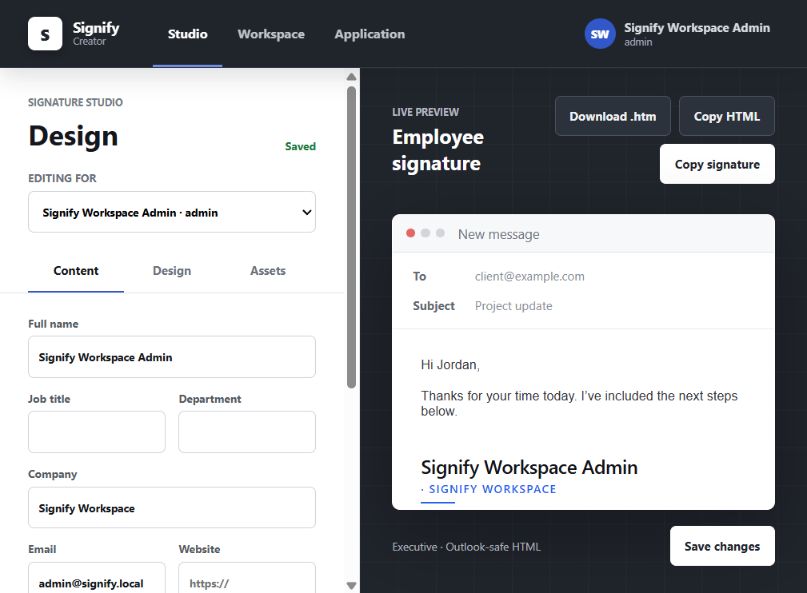
Studio
The Studio is the day-to-day signature editor. It provides content, design, and asset controls alongside a live email preview.
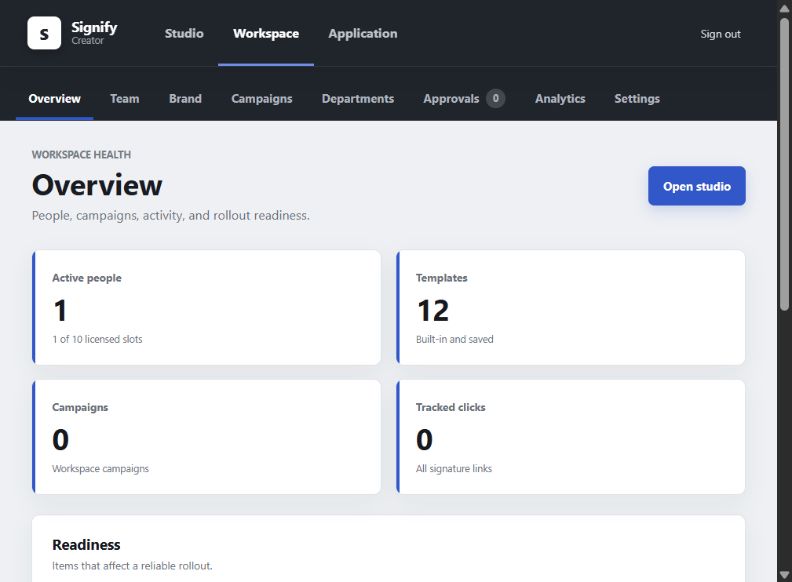
Workspace
The Workspace area is where Tenant Admins manage employees, templates, campaigns, branding, Microsoft 365, approvals, and settings.
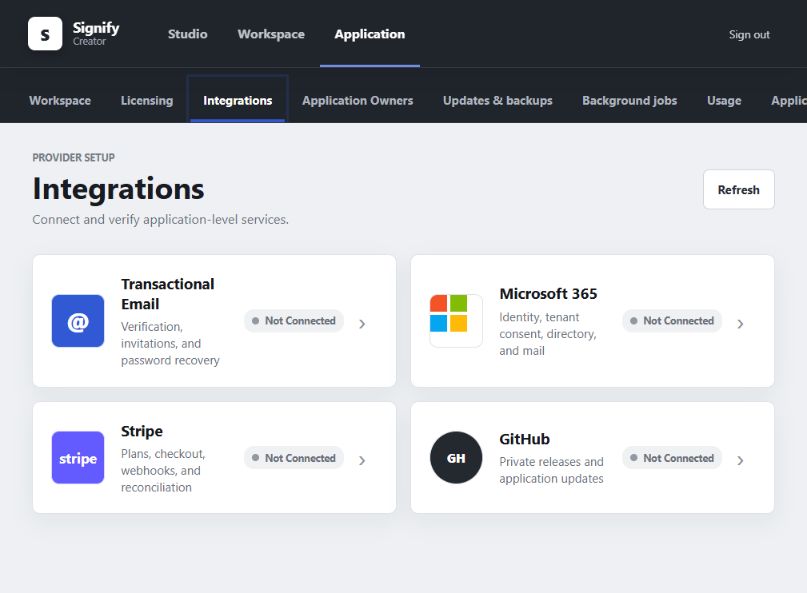
Application
The Application area is reserved for Application Owners. It contains licensing, integrations, tenants, updates, backups, background jobs, usage, and audit tools.
Recommended First-Day Checklist
- Complete the installation and first-time setup.
- Sign in as the first Application Owner and enroll MFA.
- Open the Studio and save one test signature.
- Add a Tenant Admin or employee from Workspace > People.
- Create a reusable template.
- Add a banner and test a campaign.
- Connect transactional email if you want email invitations and password reset.
- Connect Microsoft 365 in a test tenant before using production mailboxes.
- Create a backup and move a copy off the application server.
- Review Application > Updates & backups and Application > Audit.
Important Safety Rules
[!IMPORTANT] Always use HTTPS in production. Keep the database, uploaded media, generated banners, and backups on persistent storage.
[!WARNING] Never place passwords, setup tokens, Microsoft secrets, Stripe keys, GitHub tokens, or encryption keys in screenshots, issue reports, or source control.
[!CAUTION] Do not run multiple Signify web servers against the same SQLite database. One web process and one worker are supported until the runtime is fully moved to PostgreSQL.
Getting Help
Use the Troubleshooting guide first. For a verified product problem, open a GitHub issue without including credentials or customer data.