Configuration
This guide explains the settings used by Signify Creator and how to connect each optional service.
| Home | Installation | Application Owner Guide |
Where Settings Are Stored
Use one of these methods:
- Managed web host: Add settings in the host’s environment-variable or secrets panel.
- Server with terminal access: Store settings in
.env.localin the application folder. - Docker Compose: Store settings in
.env.containerand the platform’s secret store.
Never commit .env.local or real credentials to GitHub.
Minimum Production Configuration
NODE_ENV=production
HOST=0.0.0.0
PORT=4173
TRUST_PROXY=true

DATABASE_PATH=/persistent/signify/data/signify-creator.db
BACKUP_DIR=/persistent/signify/backups

SIGNIFY_COMPANY_NAME=Example Company
SIGNIFY_PUBLIC_URL=https://signatures.example.com
SIGNIFY_ASSET_BASE_URL=https://signatures.example.com
SIGNIFY_MEDIA_BASE_URL=https://signatures.example.com
SIGNIFY_APPLICATION_OWNER_EMAIL=owner@example.com

SIGNATURE_ALLOW_DEFAULT_ADMIN=false
SIGNIFY_REQUIRE_OWNER_MFA=true
SIGNIFY_CREDENTIAL_ENCRYPTION_KEY=GENERATED_32_BYTE_BASE64_KEY
For a new browser-based installation, temporarily add:
SIGNIFY_SETUP_TOKEN=GENERATED_32_BYTE_BASE64URL_TOKEN
Remove the setup token and restart Signify after setup finishes.
Core Application Settings
| Setting | Example | Meaning |
|---|---|---|
NODE_ENV |
production |
Enables secure production behavior and validation |
HOST |
0.0.0.0 |
Allows the hosting proxy to reach the Node.js process |
PORT |
4173 |
Internal listening port; use the host-assigned value when provided |
TRUST_PROXY |
true |
Trusts the HTTPS reverse proxy; normally true on managed hosting |
LOG_LEVEL |
info |
Normal production log detail |
SIGNIFY_COMPANY_NAME |
Example Company |
Name shown during setup and in the initial workspace |
SIGNIFY_PUBLIC_URL |
https://signatures.example.com |
Public browser address without a trailing slash |
SIGNIFY_ASSET_BASE_URL |
Same as public URL | Public base address for signature assets |
SIGNIFY_MEDIA_BASE_URL |
Same as public URL | Public base address used for managed media |
All three public addresses should normally use the same HTTPS domain.
Storage Settings
| Setting | Example | Meaning |
|---|---|---|
DATABASE_PATH |
/persistent/signify/data/signify-creator.db |
Main SQLite database file |
BACKUP_DIR |
/persistent/signify/backups |
Local backup folder |
SIGNIFY_MEDIA_STORAGE |
local |
local for one server or s3 for object storage |
SIGNIFY_TENANT_MEDIA_LIMIT_MB |
250 |
Media allowance for each workspace |
SIGNIFY_BACKUP_RETENTION_DAYS |
30 |
Number of days local backups are retained |
SIGNIFY_BACKUP_MINIMUM_COPIES |
7 |
Minimum recent local backup copies retained |
Local Storage Example
DATABASE_PATH=/home/account/signify-data/signify-creator.db
BACKUP_DIR=/home/account/signify-data/backups
SIGNIFY_MEDIA_STORAGE=local
Use local storage only when the folder survives application deployments.
S3-Compatible Media Example
SIGNIFY_MEDIA_STORAGE=s3
S3_BUCKET=signify-media
S3_REGION=us-east-1
S3_ENDPOINT=https://s3.example-provider.com
S3_FORCE_PATH_STYLE=false
S3_ACCESS_KEY_ID=SET_IN_SECRET_STORE
S3_SECRET_ACCESS_KEY=SET_IN_SECRET_STORE
Use a private bucket. Do not make the bucket publicly writable. When the host supports workload identity or instance roles, prefer that over static keys.
Security and Account Settings
| Setting | Recommended value | Meaning |
|---|---|---|
SIGNATURE_ALLOW_DEFAULT_ADMIN |
false |
Prevents use of development default credentials |
SIGNIFY_APPLICATION_OWNER_EMAIL |
Owner’s email | Identifies the initial Application Owner |
SIGNIFY_REQUIRE_OWNER_MFA |
true |
Requires authenticator enrollment for Application Owners |
SIGNATURE_SESSION_HOURS |
12 |
Normal workspace session duration; owner sessions are capped more tightly |
SIGNIFY_ALLOW_REGISTRATION |
false initially |
Enables public workspace registration only when email delivery is ready |
SIGNIFY_CREDENTIAL_ENCRYPTION_KEY |
Generated secret | Encrypts provider credentials and MFA secrets |
Generate the encryption key once:
node -e "console.log(require('node:crypto').randomBytes(32).toString('base64'))"
[!WARNING] Losing this key can make saved provider credentials and MFA secrets unusable. Replacing it without running the supported rotation process will break existing encrypted values.
Transactional Email
Transactional email is separate from Microsoft 365 signature delivery. It sends:
- Registration verification
- Password reset messages
- User invitations
- Other account notifications
Connect in the Application
- Sign in as an Application Owner.
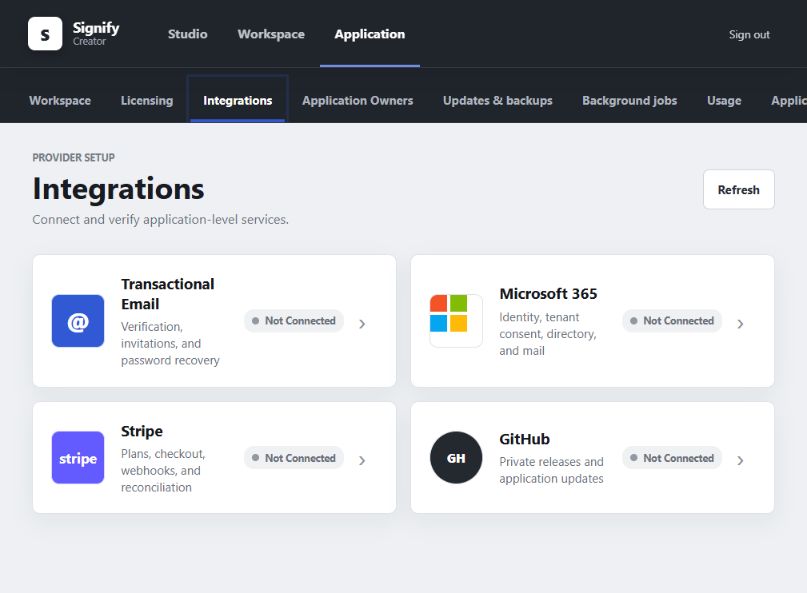
- Open Application > Integrations.
- Select Transactional Email.
- Enter the Resend API key.
- Enter a sender on a verified domain, for example
Signify <noreply@example.com>. - Enter an optional reply-to address.
- Send the verification message.
Environment Example
SIGNIFY_MAIL_PROVIDER=resend
RESEND_API_KEY=SET_IN_SECRET_STORE
SIGNIFY_MAIL_FROM=Signify <noreply@example.com>
SIGNIFY_MAIL_REPLY_TO=support@example.com
RESEND_API_URL=https://api.resend.com
Keep public registration disabled until a verification message is received successfully.
Microsoft 365
Signify uses one Microsoft Entra application at the application level. Each workspace then grants consent for its own Microsoft 365 tenant.
Create the Entra Application
- Open the Microsoft Entra admin center.
- Create a new app registration.
- Choose the account type appropriate for the organizations you serve.
- Add these web redirect addresses:
https://signatures.example.com/auth/microsoft/callback
https://signatures.example.com/auth/microsoft/admin-consent/callback
- Create a client secret and store it immediately.
- Add the following Microsoft Graph permissions:
| Permission type | Permission |
|---|---|
| Delegated | User.Read |
| Application | User.Read.All |
| Application | Organization.Read.All |
| Application | Mail.Send |
- Grant administrator consent for the application permissions.
Connect the Entra Application to Signify
- Open Application > Integrations > Microsoft 365.
- Enter the Application (client) ID.
- Enter the home Directory (tenant) ID.
- Enter the client secret.
- Select Verify Microsoft.
Connect a Workspace Tenant
- Sign in as a Tenant Admin.
- Open Workspace > Settings.
- Select Connect Microsoft 365.
- Sign in as a Microsoft 365 Global Administrator.
- Review and approve tenant-wide consent.
- Enter and save the sender mailbox when requested.
- Run a directory synchronization and test signature delivery.
Start with a Microsoft 365 test tenant and non-production mailbox.
GitHub Updates
The public Signify release channel does not require a GitHub token. A fine-grained token is optional when the host needs a higher API rate limit or is authorized to read a private fork.
Optional Token Access
- Repository access: only
ithealthtech/Signify-Suite - Repository permission: Contents - Read-only
- No issue, administration, workflow, or write permission is required for normal release detection
Connect GitHub
- Open Application > Integrations > GitHub.
- Enter the repository as
ithealthtech/Signify-Suite. - Leave the token empty for the public release channel, or enter an optional fine-grained token.
- Select the verification action.
- Open Application > Updates & backups and check for updates.
Environment fallback:
SIGNIFY_UPDATE_REPOSITORY=ithealthtech/Signify-Suite
SIGNIFY_UPDATE_GITHUB_TOKEN=SET_IN_SECRET_STORE
SIGNIFY_UPDATE_CHECK_HOURS=6
SIGNIFY_UPDATE_MAX_MB=250
One-click installation also needs host-specific deployment values:
SIGNIFY_RELEASES_DIR=/persistent/signify/releases
SIGNIFY_CURRENT_LINK=/persistent/signify/current
SIGNIFY_DEPLOY_RESTART_SCRIPT=/opt/signify/restart-signify.sh
SIGNIFY_DEPLOY_HEALTH_URL=http://127.0.0.1:4173/api/ready
SIGNIFY_DEPLOY_REQUIRE_SIGNATURE=true
SIGNIFY_RELEASE_SIGNING_PUBLIC_KEY=OFFICIAL_PUBLIC_KEY
Hosting panels that do not allow restart scripts can still detect updates. The administrator installs the package through the host’s normal deployment tools.
Licensing
Community Edition needs no license settings. Enterprise activation is completed in Application > Licensing.
Official customer builds include or receive:
SIGNIFY_LICENSE_AUTHORITY_URL=https://license.example.com
SIGNIFY_LICENSE_PUBLIC_KEY=OFFICIAL_ED25519_PUBLIC_KEY
SIGNIFY_LICENSE_REFRESH_HOURS=12
Only the public verification key belongs in Signify Creator. The License Authority private signing key and administrator token must never be installed on a customer server.
Stripe appears only when an active Enterprise license includes the tenant billing right. Community and other non-Enterprise editions do not expose Stripe controls or permit Stripe billing requests.
Background Worker
For a simple one-process installation:
SIGNIFY_JOB_MODE=embedded
For a host that supervises a separate worker:
SIGNIFY_JOB_MODE=external
Run the worker with:
npm run worker
Use exactly one worker with SQLite. The web process and worker must use the same environment and persistent storage.
Validate Configuration
Run these commands after changing settings:
npm run doctor
npm run integrations:verify
Then confirm:
GET /api/live
GET /api/ready
GET /api/health
Restart the application after changing environment settings.