Installation
This guide covers a new Signify Creator installation on managed Node.js hosting, a server with terminal access, Docker, and a local test computer.
| Home | Configuration | Troubleshooting |
Before You Begin
Prepare the following:
- A server or hosting plan that supports Node.js
- Node.js 22.13 or newer; Node.js 24 LTS is recommended
- npm 10 or newer
- A domain or subdomain, such as
signatures.example.com - HTTPS for the domain
- A persistent storage location for the database, media, and backups
- The email address for the first Application Owner
Optional services can be connected later:
- Transactional email for invitations, verification, and password reset
- Microsoft 365 for directory synchronization and signature delivery
- GitHub release detection and managed updates
- Stripe for Enterprise tenant billing only
Choose an Installation Method
| Environment | Recommended method |
|---|---|
| Hostinger or a similar Node.js hosting panel | Managed Node.js hosting |
| Linux or Windows server with terminal access | Interactive installer |
| VPS with Docker and Docker Compose | Docker Compose |
| Personal computer used only for testing | Local test installation |
Managed Node.js Hosting
Use these steps for Hostinger and similar hosting panels.
1. Upload the Application
- Download the newest package from the Signify releases page.
- Extract the package on your computer if the host does not extract archives.
- Upload the complete application to the Node.js application folder.
- Do not upload a local
.env.local, database, backup, or customer media file.
2. Configure the Node.js Application
Use these values unless your host provides a different required value:
| Hosting field | Value |
|---|---|
| Node.js version | 24.x |
| Framework | Other |
| Entry file | server.cjs |
| Build command | npm run build |
| Install command | npm ci --omit=dev |
| Output directory | dist when required by the panel |
The host may assign a port automatically. If so, use the assigned PORT and do
not force port 4173.
3. Create Persistent Folders
At minimum, Signify must retain these items between deployments:
/persistent/signify/data/
/persistent/signify/backups/
/persistent/signify/media/
The exact path depends on the host. A path inside a temporary release or build folder is not persistent.
[!WARNING] If the database path is temporary, Signify will appear to be a new installation after a restart or deployment.
4. Add the Required Settings
Add the following environment settings in the host control panel. Replace every example value.
NODE_ENV=production
HOST=0.0.0.0
PORT=4173
TRUST_PROXY=true

DATABASE_PATH=/persistent/signify/data/signify-creator.db
BACKUP_DIR=/persistent/signify/backups

SIGNIFY_PUBLIC_URL=https://signatures.example.com
SIGNIFY_ASSET_BASE_URL=https://signatures.example.com
SIGNIFY_MEDIA_BASE_URL=https://signatures.example.com
SIGNIFY_COMPANY_NAME=Example Company
SIGNIFY_APPLICATION_OWNER_EMAIL=owner@example.com

SIGNATURE_ALLOW_DEFAULT_ADMIN=false
SIGNIFY_REQUIRE_OWNER_MFA=true
SIGNIFY_CREDENTIAL_ENCRYPTION_KEY=PASTE_GENERATED_KEY_HERE
SIGNIFY_SETUP_TOKEN=PASTE_GENERATED_SETUP_TOKEN_HERE
Generate the two protected values on any computer with Node.js installed:
node -e "console.log(require('node:crypto').randomBytes(32).toString('base64'))"
node -e "console.log(require('node:crypto').randomBytes(32).toString('base64url'))"
- Use the first result for
SIGNIFY_CREDENTIAL_ENCRYPTION_KEY. - Use the second result for
SIGNIFY_SETUP_TOKEN. - Store the encryption key in a password manager or hosting secret vault.
- Never replace the encryption key during a normal update.
See Configuration for all settings and examples.
5. Start the Application
- Save the hosting configuration.
- Install dependencies if the host does not do so automatically.
- Start or restart the Node.js application.
- Open
https://signatures.example.com/setup.html.
6. Complete First-Time Setup
A fresh installation locks all normal pages until setup is finished.
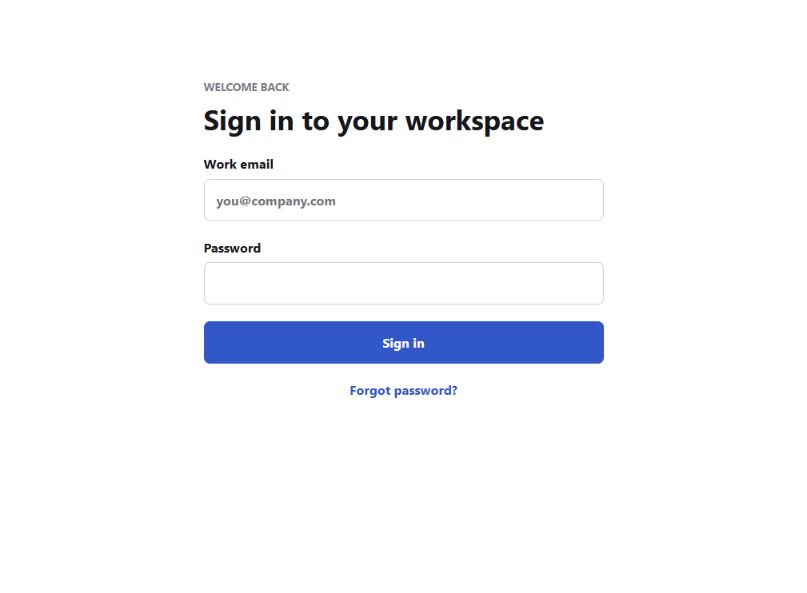
The setup page has three stages:
- Setup
- Enter the setup token.
- Confirm the public application address.
- Signify checks the database and storage folders.
- Configure
- Enter the company name.
- Enter the first Application Owner’s name and email.
- Create the initial workspace.
- Sign in
- Save the one-time password shown during setup.
- Open the sign-in page.
- Sign in and enroll multi-factor authentication.
Integrations are optional during first-time setup. Skipping them does not prevent the workspace from opening.
7. Remove the Setup Token
After setup succeeds:
- Remove
SIGNIFY_SETUP_TOKENfrom the hosting panel. - Restart the application.
- Confirm
/setup.htmlno longer allows the installation to be recreated.
8. Verify the Installation
Open these addresses:
https://signatures.example.com/api/live
https://signatures.example.com/api/ready
https://signatures.example.com/api/health
Each should return a successful response. If terminal access is available, also run:
npm run doctor
Interactive Installer
Use this method on a server where you can run terminal commands.
Linux or macOS Shell
npm ci --omit=dev
npm run setup
npm start
Windows PowerShell
npm ci --omit=dev
npm run setup
npm start
The installer:
- Detects the application folder
- Detects common hosting domains and persistent storage paths
- Creates
.env.local - Creates the database and applies all updates
- Creates the first workspace and Application Owner
- Generates protected values when they are missing
- Displays the first login password once
Store the displayed password immediately.
Non-Interactive Server Setup
For automated hosting, provide all required environment values and run:
npm run setup -- --non-interactive
This command fails instead of guessing when required production settings are missing or unsafe.
Docker Compose
Docker is recommended when you control the VPS.
1. Prepare the Settings
cp .env.container.example .env.container
Edit .env.container and replace the example domain, company name, owner email,
storage configuration, and encryption key.
2. Build and Initialize
docker compose build
docker compose run --rm setup
docker compose run --rm migrate
The setup container prints the first login password.
3. Start Signify
docker compose up -d web worker
docker compose exec web node scripts/doctor.cjs
4. Reverse Proxy
Place Signify behind an HTTPS reverse proxy such as Caddy, Nginx, Traefik, or the hosting provider’s proxy. Forward the original protocol and client address, and set:
TRUST_PROXY=true
Do not expose the internal Node.js port directly to the internet when an HTTPS proxy is available.
Local Test Installation
Use this only on a development or test computer.
npm ci
npm run setup
npm run dev
Open:
http://127.0.0.1:4173
Do not use test passwords, test databases, or local HTTP settings in production.
After Installation
Complete this checklist before adding real users:
- Application Owner MFA is enabled.
- The public URL uses HTTPS.
- Database and backup paths are persistent.
- A backup was created and downloaded.
- A copy of the backup is stored off the server.
- The Studio saves and reloads a test signature.
- The site works after a server restart.
- Transactional email is connected if public registration is enabled.
- Microsoft 365 was tested with a non-production tenant first.
- Application logs do not show repeated errors.
Continue with Configuration, then follow the Using Signify Creator guide.