Chapter 3
Clients
Every organization you support is a client in Atlas, with its own workspace. This chapter covers finding a client, what its workspace shows, and the everyday changes you make to it.
The client list
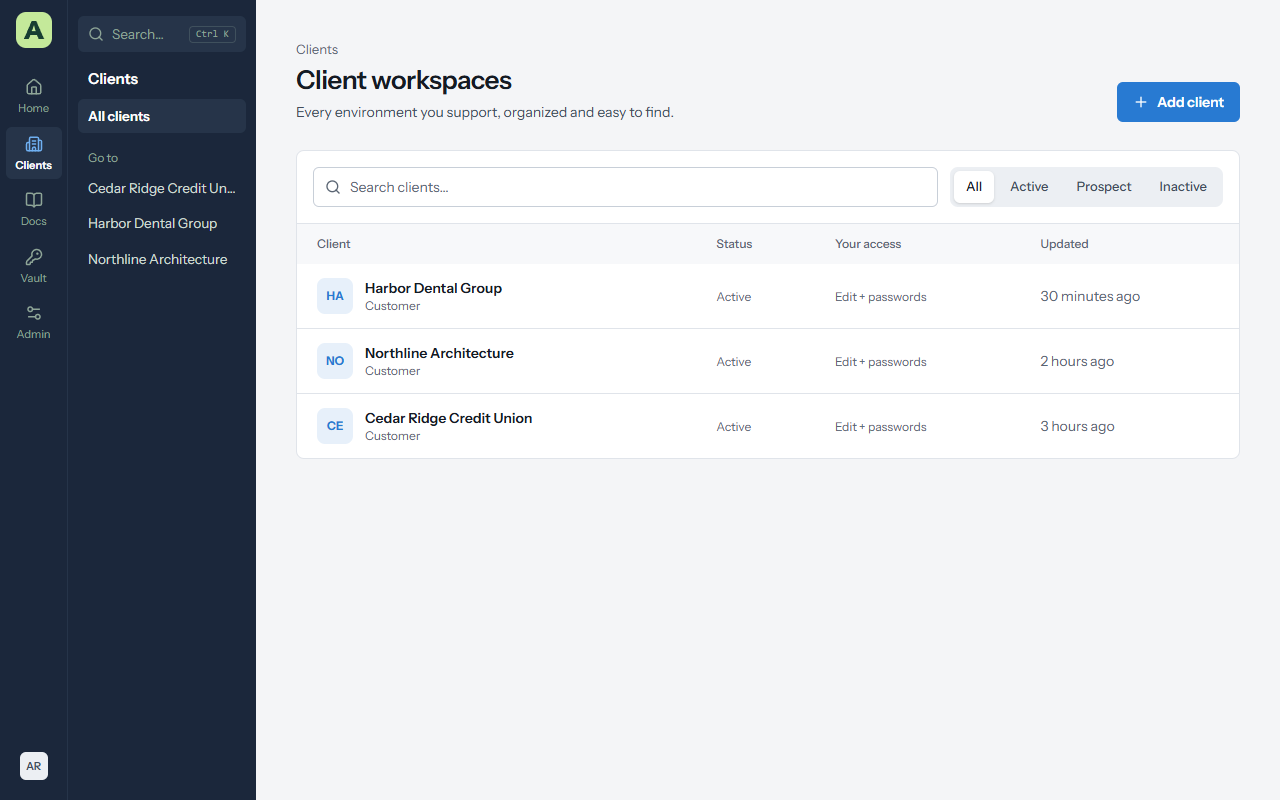
Clients → All clients lists every client you can open, with its status, your access, and when it last changed. Type in Search clients to filter, or choose All, Active, Prospect or Inactive.
In the rail menu style, the Go to list in the Clients panel jumps straight to any client.
Add a client
You need edit access to every client to add one. Administrators always have it.
- Choose Add client on the client list.
- Enter the Client name, and choose its Type and Status.
- Optionally fill in Hours of operation and Maintenance window. They show on the client's overview, where technicians look before scheduling work.
- Tick Require a reason to view passwords if this client wants every password reveal explained. See Passwords.
- Choose Save.
A client's workspace
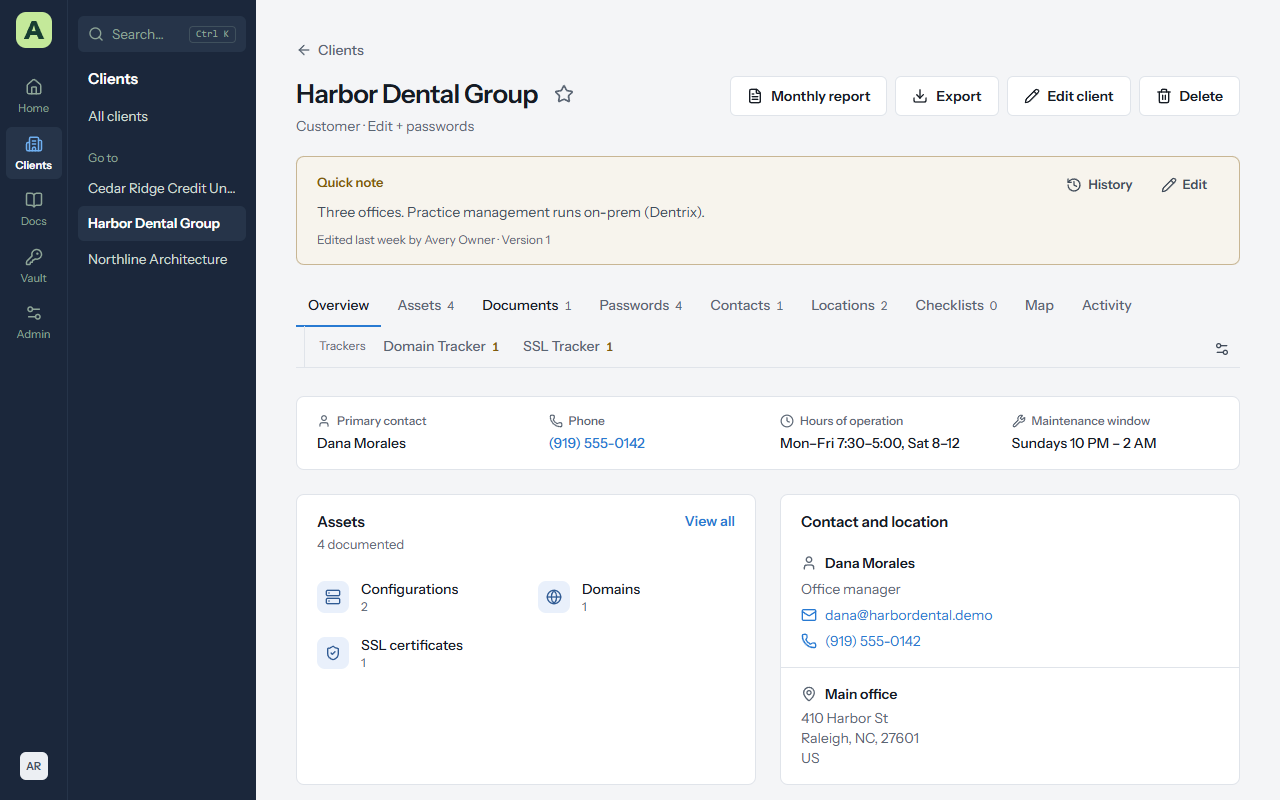
Opening a client shows:
- The header: the client's name and type, your access, and the star to add it to your favourites. Monthly report, Export, Edit client, and for administrators Delete, are on the right.
- The quick note: a short note at the top of every page for this client, for the thing everyone should know before they touch anything.
- The tabs: Overview, Assets, Documents, Passwords, Contacts, Locations, Checklists, Map and Activity, each with a count. The Trackers row underneath has Domain Tracker and SSL Tracker. A tracker count turns amber when something needs attention.
Hide tabs you don't use
Choose Choose which sections show (the sliders at the right of the tabs) and untick the sections you don't need. This only changes your own view; other people still see every tab.
The overview
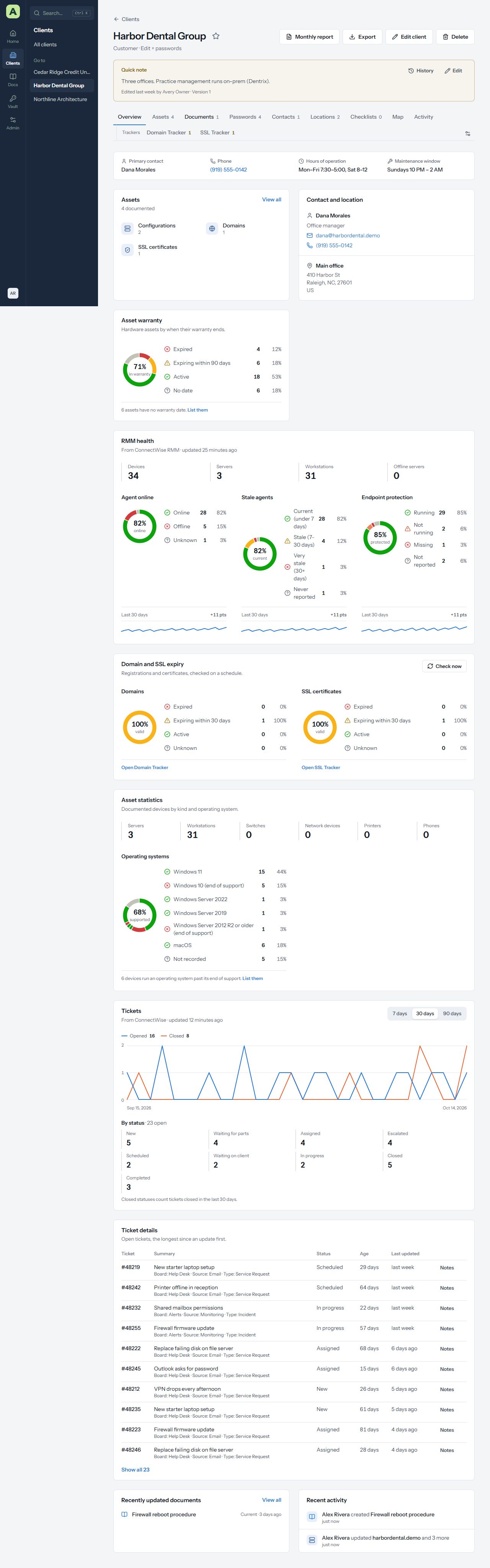
The overview is the client at a glance. Scroll down for the detail.
| Part | What it shows |
|---|---|
| Facts | Primary contact, phone, hours of operation and maintenance window. |
| Assets | How many assets the client has in each layout. Choose one to open the list. |
| Contact and location | The primary contact's details and the primary location's address. |
| Asset warranty | Hardware by when its warranty ends: expired, ending soon, active, unknown. |
| RMM health | From ConnectWise RMM: devices online, stale agents, and endpoint protection. |
| Security and compliance | From ConnectWise: patch compliance, backup and DR readiness, vulnerabilities and MDR incidents. A part the client doesn't use says Not available. |
| Domain and SSL expiry | What is expired or expiring among the client's domains and certificates. |
| Asset statistics | Servers, workstations, network devices, printers and phones, and a chart of operating systems that marks the ones out of support. |
| Tickets and Ticket details | Tickets opened and closed per day, and the open tickets that have gone longest without an update. |
| Installed software | Applications reported by ConnectWise RMM across the client's devices. |
| Recently updated documents and Recent activity | What changed lately, and who changed it. Several changes in a row by one person show as one line. |
Cards that rely on ConnectWise only appear once the client is linked to a ConnectWise company. Chapter 6, Monitoring and alerts, explains each card in detail.
Quick notes
The quick note is for one or two lines everyone must see: "Practice management runs on-prem, never reboot the server before 6 PM", or "New firewall going in next week."
- Choose Edit on the note to change it.
- History shows every earlier version, lets you compare two, and restore one.
Contacts and locations
The Contacts and Locations tabs list the people and sites for this client.
- Add contact or Add location opens a form. Tick Primary contact or Primary location to show it on the overview.
- A contact's email and phone numbers are links, so you can call or write from the page.
- Link a contact or location to the assets and documents it relates to from the item's Related section. See Documentation.
The relationship map
The Map tab draws how the client's assets, passwords, documents, contacts and locations link together, with the same links as a list below for keyboard and screen-reader use. It's built from the links you make under Related on each item.
The monthly report
Monthly report in the client header opens a printable page with the client's assets and documents. Use your browser's Print, and choose Save as PDF to send it to the client.
Export a client
Export downloads a zip of everything you can see for the client:
-
client.json, with the client, contacts, locations, assets and their fields, documents and links. - The documents as plain text.
- The attached files.
Administrators can tick Include decrypted passwords. Atlas asks for your password again first, and every password exported is logged. Keep such an export encrypted, and delete it when you're done.
Change or delete a client
- Edit client changes the name, type, status, hours, maintenance window and the reason requirement.
- Delete (administrators only) removes the client and everything in it. You must type the client's name exactly. The deletion is recorded in the security log. It can't be undone except by restoring a backup.